
12.1 NextJS Introduction
# NextJS
NextJS is a framework that is built on top of React.
NextJS Version
We will be using version 14 of NextJS. Pay attention to any references or online examples that you find. There are some big differences between version 12 and version 13+ of NextJS. We will discuss these as we go along.
It uses React as the foundation of the application, but layered on top of that are features provided by NextJS. One of the most important of those is the routing to different pages. A basic React app is built of components. React Router lets you assemble those components into pages by adding routes and the code for managing the routes.
NextJS simply imposes conventions that you follow when creating your folders. Based on those folders and file names, it will automatically create the routing. For the routing to work properly, there is some server-side code that needs to run on your hosting site. If you are using Netlify or Vercel for the hosting then that code can automatically run without any additional work from you, aside from following the conventions.
NextJS allows us to add a directive at the top of our component scripts - use client or use server. These directives will control where the component is rendered - in the browser or on the server
with the rendered content being sent to the browser. We will talk more about this as we progress through the NextJS features.
Difference between NextJS and React
While using NextJS remember that you are using a system with built-in routing. So, you are building multiple pages.
The pages are primarily going to be built on the server-side. The fetch calls are also being made on the server-side.
This means you will rarely ever need to use useState or useEffect.
Next.js === Routing + Server-Side Rendering
React === SPA + State variables + Hooks
# Creating a NextJS Project
With NextJS, instead of using vite to create our project, we will use:
npx create-next-app@latest
This will run the latest version of create-next-app in memory to create your NextJS app. After running this command and agreeing to load create-next-app, you will be faced with the following
questions:
What is your project named? my-app
Would you like to use TypeScript? No / Yes
Would you like to use ESLint? No / Yes
Would you like to use Tailwind CSS? No / Yes
Would you like to use `src/` directory? No / Yes
Would you like to use App Router? (recommended) No / Yes
Would you like to customize the default import alias (@/*)? No / Yes
2
3
4
5
6
7
The name of the project will become the folder that is created. Use these answers for all the questions:
- Typescript:
No, - ESLint:
Yes, - Tailwind:
Noat first but eventuallyYes, src/directory:No,- App Router:
Yes, - Import Alias:
No. We will discuss this later.
This process will set up all the required node_modules too.
After this is finished running we can run our three main scripts from package.json.
npm run dev
npm run build
npm run start
2
3
These are the same as the React scripts except the preview command from a React project is a start command in a NextJS project.
Using npm run dev means that you are running the development version of your site. It has hot reloading for every page and component. So, each time you change and save a file the site will be
updated. No work is done to minimize anything.
Using npm run build will run all the scripts to transpile, concatenate, and minimize everything. No hot reloading. If you make a change you will need to run the build command again. This is the
command that gets used when you send your repo to Vercel.
# NextJS Folders and Files
As already mentioned, in NextJS we have conventions which, when followed, will create routing. So, that means there will be files that you create which represent pages and other files which will
create components. Components we work with in plain ReactJS. You should already be comfortable with the idea of components. Pages are containers for components.
Version 13+ of NextJS has a new router called the App Router, which is built on top of React Server Components. The React Server Component is the technology that the use client and
use server are built on top of.
NextJS Routing reference (opens new window)
NextJS version
The current version of NextJS, as of March 2024, is 14.1.
When running the create-next-app command, we answered the question to say that we didn't want the src folder and we did want to use App Router. So, the default project structure (as shown in the
image below) has a folder called app which is where all our jsx code will go.
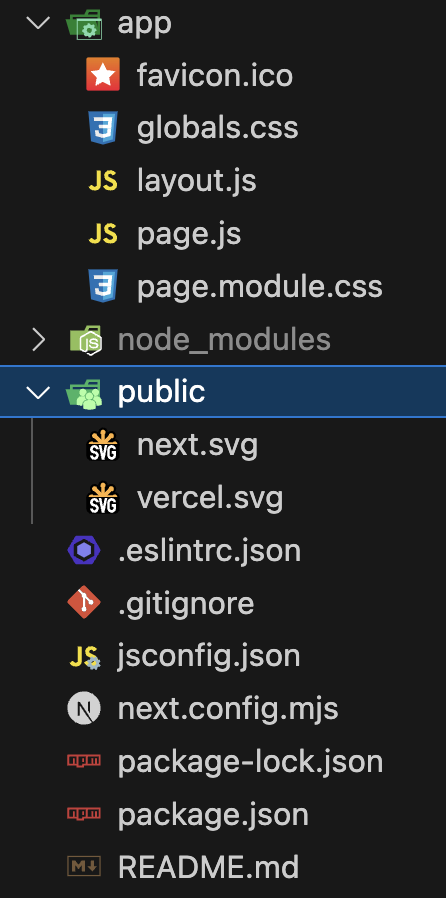
In this default setup we have four key files - layout.js, page.js, page.module.css, and global.css.
The layout.js file creates the layout that will be used for a page route. In this case it is the layout file for the app folder, the root page for the site. It creates the structure for the layout
that will be used for child pages, unless there is another layout.js file in a subfolder that will overwrite the parent one. Typically it just creates the html and body elements. The metadata
object will let you define the meta and link and title tags inside the <head>.
// /app/layout.js
import { Inter } from 'next/font/google';
import './globals.css';

const inter = Inter({ subsets: ['latin'] });

export const metadata = {
  title: 'Create Next App',
  description: 'Generated by create next app',
};

export default function RootLayout({ children }) {
  return (
    <html lang="en">
      <body className={inter.className}>{children}</body>
    </html>
  );
}
2
3
4
5
6
7
8
9
10
11
12
13
14
15
16
17
18
Then we have the page.js file which takes the place of the {children} in layout.js.
// /app/page.js
import Image from 'next/image';
import styles from './page.module.css';

export default function Home() {
  return (
    <main className={styles.main}>
      <p>This is the actual page content that will be used in place of "{children}" inside layout.js</p>
    </main>
  );
}
2
3
4
5
6
7
8
9
10
11
The global.css file is the only place that you are allowed to add CSS which will be applied to every page and component across the entire application.
The page.module.css file will contain the css that is directly applied to the page.js file and its contents. Notice the different syntax for importing the CSS. There is actually a name for the
import - styles. All of the styles that you have inside page.module.css will be properties of this styles object.
Inside page.module.css you should use class names for all your styles. The class names become the properties inside the styles object. Then use things like styles.main to refer to .main{ } in
the css file. Any CSS file whose name ends with module.css will automatically become CSS that only applies to the current page.
We will look more at the CSS files when integrating Tailwind.
All of your page.js files are the pages of your application.
As you create folders and nested folders inside of /app/ these become the routes for your application. Each folder should have a page.js file. Inside the page.js file you can reference and load
any components that you want, just like you did with React apps.
The layout.js file inside /app/ is used as the base layout for every page unless you add a new overriding layout.js in a subfolder.
Outside or inside of the app folder, you can create your components folder and place all of your reusable component files inside there.
There are other files with special names that you can use too:
error.jsAn error page to display for the current route if an error occursnot-found.jsA 404 error page for the current folder / route.loading.jsA loader page to display while building the current route pages.
You can use either .js, .jsx, or .tsx file extensions for any of these files.
# The layout.js file
While most of the time there will only be one layout.js file at the root of the /app folder, you are allowed to have another one inside any additional routing folders that you create.
The purpose of the layout.js file is to act as a container for all the page.js files. It will create the <html> element, the <head> and <body> elements, and any additional structural parts
that you want to have on every page. If there is static content that will appear on every page, like a masthead or a footer, then you can put this inside of layout.js.
Inside the return value for the layout's default export function, whereever you add {children} will be where the page.js content will be inserted.
The layout.js file also has the ability to add custom link tags for CSS libraries, it is a good place to import your Google fonts to use in the rest of the site, and you can define the meta tags for
your site too.
Simply add an export for const metadata which holds an object with properties that should become meta tags for your site. The default starter project for Next.js will contain the following version
for you to edit.
export const metadata = {
  title: 'Create Next App',
  description: 'Generated by create next app',
};
2
3
4
In your page.js you can create another export const metadata to override the values set in the layout.js file. This way each page can have a unique title and override the default value.
Reference for the metadata object (opens new window). See this reference for a full list of the possible properties inside the metadata object.
# The not-found.js file
By default, Next.js will display a default 404 error page if an invalid route is requested.
However, you can build your own custom one which can be styled to match your other page.js files. Just create a file called not-found.js at the root, or inside any route segment folder. It will
automatically be rendered and sent to the browser for an invalid 404 request.
import Link from 'next/link';

export default function NotFound() {
  return (
    <div>
      <h2>Not Found</h2>
      <p>Could not find requested resource</p>
      <Link href="/">Return Home</Link>
    </div>
  );
}
2
3
4
5
6
7
8
9
10
11
Here is the full reference for not-found.js (opens new window).
# What to do this week
TODO Things to do before next week.
- Read all the content from
Modules 12.1, and 12.2. - Finish watching the React in 2021 Video Tutorial Playlist (opens new window)