
10.1 JSX, Components, & Props
# Components
A React Web App could be built entirely within the /src/main.js file. However, that would very quickly become a huge unweildy mess of nested code. Instead, we split our page up into Components.
Each Component gets its own JavaScript file. Each Component needs to have a function that creates and returns the component. Each Component can have its own css and images that get imported. This may seem like you could end up with a lot of files very quickly but it is actually a very easy way to organize your code.
A typical convention to follow is to create a folder for each component. Say we have our index.js file that loads our App.js. <App /> is the entire app. It loads a <Header />, a <Footer />, and
a <Main /> component. The <Main/> component will be loading a <UserList/> component.
Your directory structure could look like this.
── src
    ├── App.css
    ├── App.jsx
    ├── index.css
    ├── main.jsx
    ├── Footer
    │   ├── Footer.js
    │   ├── footer.css
    ├── Header
    │   ├── Header.js
    │   ├── header.css
    ├── Main
    │   ├── Main.js
    │   ├── main.css
    ├── UserList
    │   ├── UserList.js
    │   ├── userlist.css
2
3
4
5
6
7
8
9
10
11
12
13
14
15
16
17
Each component will have a JavaScript file that is either called index.js or a name that matches the folder.
You can also put all of those into a folder called components. We will be adding other folders for different types of files later.
If you have run the npm run dev command and looked at the open React app in your browser you will have seen the note "Edit src/App.js and save to reload.".
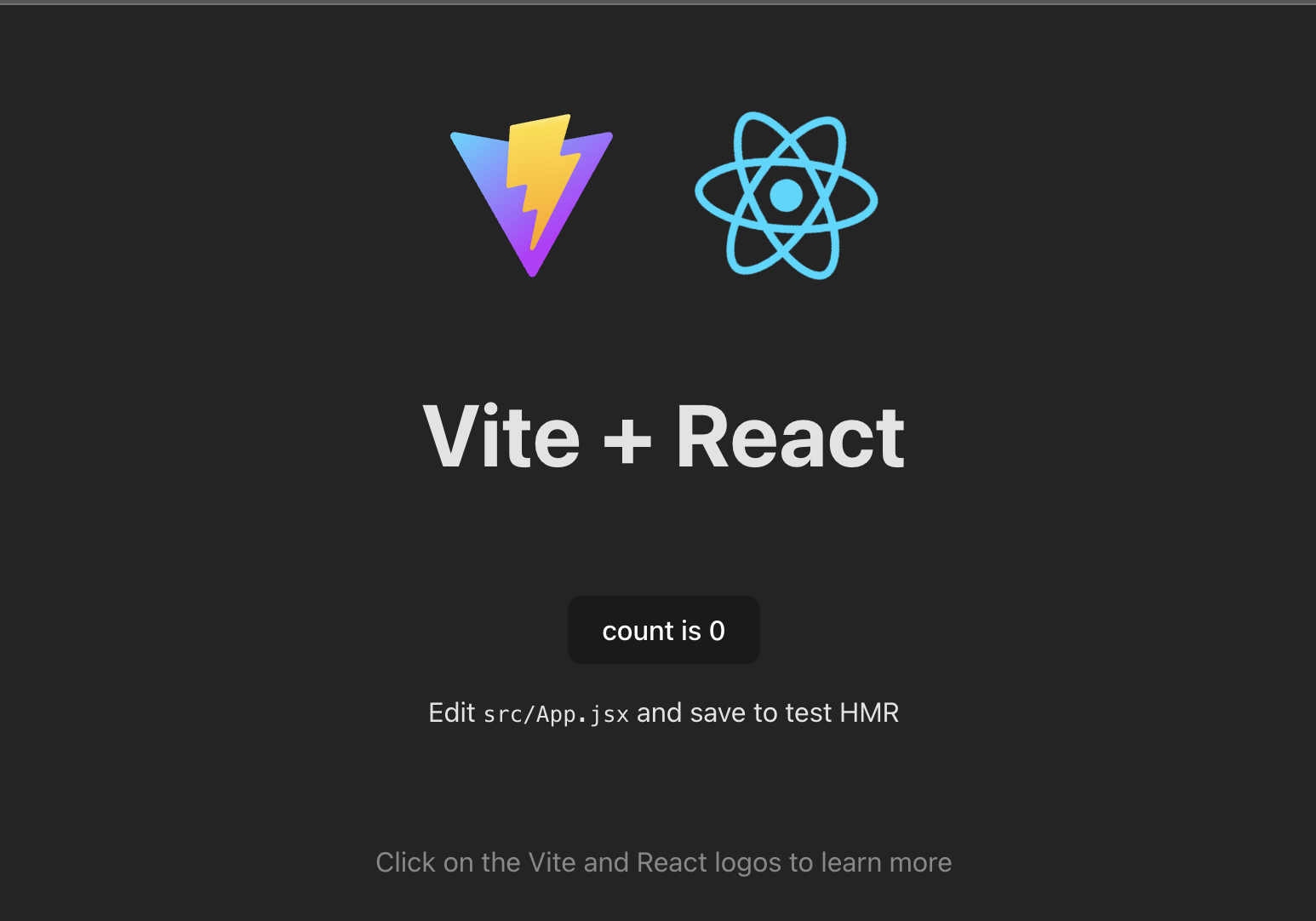
Go ahead and strip out everything inside the App function except this:
function App() {
  //we are allowed to have other Javascript here...
  return <div className="App"></div>;
}
2
3
4
You can also remove the two import lines at the top of App.js.
Same File or import
It is possible to put all of your components into a single JavaScript file. It really is just creating a function for each one. In some demos you might see us creating multiple components in the same file. However, the standard best practice is to create a separate file for each one.
# Creating a Component
The JavaScript for creating a component is actually quite simple. Let's look at an example for our <Header /> component.
import './header.css';

function Header() {
  //remember to use capitalized names for your component functions.
  //we are allowed to have other Javascript here...
  return (
    <header className="masthead">
      <h1>This is my Awesome React Web App</h1>
    </header>
  );
}

export default Header;
2
3
4
5
6
7
8
9
10
11
12
13
and the CSS in header.css only contains this:
.masthead {
  background-color: cornflowerblue;
  margin: 0;
}
.masthead h1 {
  color: white;
  font-weight: 500;
  font-size: 3rem;
  margin: 0;
  padding: 1rem 2rem;
}
2
3
4
5
6
7
8
9
10
11
For the component, you always need to have an export default statement that exports your component function.
The component function needs to return an object literal that is written with JSX. Because you are returning an object literal, you should always wrap the return value in a set of parentheses.
Now, to make our new <Header /> appear inside our <App />, go back to App.js and update it to be this:
import Header from './Header/Header.js';

function App() {
  //we are allowed to have other Javascript here...
  return (
    <div className="App">
      <Header />
    </div>
  );
}

export default App;
2
3
4
5
6
7
8
9
10
11
12
You now have an <App/> component that is being imported by index.js and which is importing and rendering your <Header/>.
Once you save the file changes and run the yarn start command again, you will see your new app.
# JSX
React guide for JSX (opens new window)
JSX is a JavaScript string like a template literal which uses HTML-like markup style syntax to create elements. The React framework converts the JSX into the virtual DOM, does the DOM Diffing, and updates the actual DOM to show your components on the page.
When you are creating your component functions, the return value should be a single JSX string wrapped in a set of parentheses.
The JSX return value should also only every have a single root element. Just like an HTML file, you can't have two root elements. A webpage would never have two <html> elements. There has to be a
single parent for the whole component.
JSX Single Parent
Every JSX value returned from a React Component Function must have a single Root element.
# Fragments
In JavaScript, we sometimes use Document Fragments to wrap bits of HTML that we want to append to our webpages. The Document Fragment acts like a transport container. Once the new HTML has been delivered to the page, the Fragment can disappear. It doesn't actually get appended to the page itself.
JSX has a Fragment element too. It is just an empty pair of angle brackets <></>.
If your component needs to return multiple elements that will be siblings, then you can wrap them in a JSX Fragment.
function MyComponent() {
  return (
    <>
      <h1>The Heading</h1>
      <h2>The Sub Heading</h2>
    </>
  );
}
2
3
4
5
6
7
8
JSX in variables
Any JSX that you want to write can be put into a variable for later use.
# Embedding Expressions
Another cool thing about our JSX strings is that we can embed variables and expressions and function calls inside the strings.
function formatName(user) {
  return user.firstName + ' ' + user.lastName;
}

const user = {
  firstName: 'Harper',
  lastName: 'Perez',
};

const element = <h1>Hello, {formatName(user)}!</h1>;

function MyComponent() {
  return (
    <div>
      <header>{element}</header>
    </div>
  );
}
export default MyComponent;
2
3
4
5
6
7
8
9
10
11
12
13
14
15
16
17
18
19
In the example above we are building a <MyComponent/> component. It returns a div with a header that contains an h1 that contains the message "Hello, Harper Perez". There is several levels of
nesting and expression embedding here.
Any time that you embed an expression, it will automatically be escaped for safety.
React guide to components (opens new window)
# Expressions vs Statements
When writing your JSX it is important to keep in mind that you CAN embed EXPRESSIONS, but you CANNOT embed STATEMENTS.
This first example uses a valid expression. So it works inside of JSX.
return (
  <div>
    <h1>{mySiteTitle.toUpperCase()}</h1>
  </div>
);
2
3
4
5
This second example uses a statement. So it will throw an error and not compile.
//This is bad code. You cannot include a statement inside JSX.
return (
  <div>
    {if(mySiteTitle){
      <h1>{mySiteTitle.toUpperCase()}</h1>
    }else{
      <h1>Default Title</h1>
    }}
  </div>
)
2
3
4
5
6
7
8
9
10
This third example uses an expression to achieve the same goal as the second example. It will compile.
return (
  <div>
    {mySiteTitle ? <h1>{mySiteTitle.toUpperCase()}</h2> : <h1>Default Title</h1>}
  </div>
)
2
3
4
5
The ternary statement is an expression.
Simply put, an expression could be the code that sits on the right side of an equal sign.
# Comments in JSX
If you want to add comments inside JSX, then you need to remember that you are writing JavaScript with embedded expressions. JavaScript uses /** **/ for it's comments. Comments will be treated like
an expression.
function MyComponent(props) {
  return (
    <div>
      {/** embedded expression with a comment inside it **/}
      <ChildComponent />
    </div>
  );
}
2
3
4
5
6
7
8
# Additional Logic
If you need to add additional logic inside your JSX, you can do that too. Remember, JSX is a JavaScript expression too.
You will often see things like this:
function Thing(){
  let num = Math.round(Math.random()); //random 0 or 1
  if(num){
    return <p>You were lucky today</p>;
  }else{
    return (
      <div>
        <p>This is a completely different component now.<p>
        <p>You got a zero so you get a different component.</p>
      </div>
    )
  }
}
2
3
4
5
6
7
8
9
10
11
12
13
Sometimes, we will use logical short-circuiting when we want to render a component only if something else is true.
function Element() {
  let num = Math.round(Math.random()); //random 0 or 1
  return num && <p>We only show this paragraph if num is one.</p>;
}
2
3
4
And a related topic is the logical nullish assignment operator.
Another common expression you will see inside your returned JSX is the Ternary statement.
Guide to conditional rendering in React (opens new window)
Guide to keeping components pure in React (opens new window)
# Props and Attributes
The JSX elements, just like HTML elements, can have attributes too.
However, if you want the value of the attribute to be a hard-coded string value then you MUST wrap the value in double-quotes. Single quotes or backticks are not allowed.
<p title="The mouseover text for the paragraph" className="texty">
  Lorem Ipsum
</p>
2
3
If you want to add a CSS class name to any JSX element, then you MUST use the attribute className, not class. Remember that we are writing things in JavaScript here, not HTML. In JavaScript the
property we would use to set a string with css classes is className.
# Props
The other cool thing about creating attributes in our JSX elements has to do with the fact that we are NOT WRITING HTML.
Those attributes become properties that get passed down from every parent component to its children.
Take this example of nested components. The CSS has been omitted for simplicity.
//this file is /src/components/List/index.js
import ListItem from '../ListItem/index.js';

function UserList() {
  const users = ['Sheldon', 'Georgie', 'MeeMaw', 'Missy'];
  return (
    <ul>
      <ListItem key="Sheldon" name="Sheldon" />
      <ListItem key="Georgie" name="Georgie" />
      <ListItem key="MeeMaw" name="MeeMaw" />
      <ListItem key="Missy" name="Missy" />
    </ul>
  );
}

export default UserList;
2
3
4
5
6
7
8
9
10
11
12
13
14
15
16
Our <UserList> component builds an unordered list that contains 4 of the <ListItem/> components that were imported.
Each of the ListItem components has a key and a name attribute. key is a reserved property that is a unique identifier for each ListItem. React uses it to match values when it does its DOM
Diffing.
The other property is name. name is not a special property name, it is just the name of an attribute that we will use to pass its value down into the ListItem component.
Inside the ListItem component our function will automatically be passed a props argument. It will contain all the attribute props inside our <ListItem/> in List.js.
Here is what ListItem.js will look like:
// /src/components/ListItem/index.js
function ListItem(props) {
  return <li>{props.name}</li>;
}
export default ListItem;
2
3
4
5
We are exporting the function ListItem, which will generate a JSX <ListItem/>.
When the React render method is run and the actual DOM gets updated, the <ListItem/> becomes a <li></li> with a unique id that is derived from that key value.
The value of the name attribute in the <ListItem/> JSX will be added as a property inside the props object, which gets passed into the function ListItem(props){}.
Props
- The
propsis an Object that can hold any kind of value. - We can put expressions in the attributes to hold strings, numbers, functions, arrays, other objects, etc. Eg:
<Element attr={[3, 5, 6, 7]} />. Just use curly braces instead of double quotes to hold the expressions. - You can't have a prop called
key.
# Destructured Props
When we are creating a functional component that accepts props, we can put a variable called props in the function declaration. Like this:
export default function MyComponent(props) {
  return (
    <>
      <p>{props.name}</p>
      <p>{props.email}</p>
    </>
  );
}
2
3
4
5
6
7
8
The variable doesn't have to be called props, but that is the convention.
If you want, you can use destructuring to extract the specific properties that you are looking for from inside of props.
export default function MyComponent({ name, email }) {
  return (
    <>
      <p>{name}</p>
      <p>{email}</p>
    </>
  );
}
2
3
4
5
6
7
8
React Reference for Components and Props (opens new window)
# Styling JSX Components
Any Component that you build with JSX can be styled with styles from an attached CSS file. Just import your CSS file for your Component like this:
import './things.css';
Then, inside your JSX, use the className attribute to connect the styles.
export default function Things() {
  return (
    <div className="someClass">
      <h2>Styled by an External Stylesheet</h2>
    </div>
  );
}
2
3
4
5
6
7
The alternative to this is to use a style attribute and assign it a JavaScript style Object.
Inside the Object we have to use the JavaScript version of the css property names. No hyphens, using camel-case names instead. All the property values must be wrapped in double quotes.
export default function Stuff(){
  let num = Math.round(Math.random());

  return (
    <div style={ {
      margin: "1rem 0",
      padding: "1rem",
      backgroundColor: num ? "khaki" : "pink",
    } }>
      <p>The outer curly braces denote an expression.</p>
      </p>The inner curly braces are the style Object.</p>
    </div>
  );
}
2
3
4
5
6
7
8
9
10
11
12
13
14
Normally, you would put the className in the element and put all the styles in the CSS file.
However, there will be times when you will need to dynamically calculate or set the value for a property. In these cases it is fine to use a style object directly inside the JSX element.
# What to do this week
TODO Things to do before next week.
- Read all the content from
Modules 10.1, 10.2, and 11.1. - Continue watching the React in 2021 Video Tutorial Playlist (opens new window)