
3.2 Workers
# Workers
Workers are a special kind of JavaScript file that uses a new thread for processing the script.
If you have a webpage with three <script> tags, then all three of those scripts are loaded into the same thread which is created for the current domain.
If you create a worker script then it will create a second thread for the domain and run there. It can be a useful way to offload some processor intensive tasks.
There are three kinds of shared workers. They are called shared because they can be accessed by all other scripts that are running in the browser across all windows and tabs that are loading pages from the same domain.
The first type is a Worklet. These are specifically for tasks related to Audio processing, CSS and rendering of the UI. We won't be using any Worklets in our courses.
Here is a reference for Worklets (opens new window)
The second kind is called a Web Worker. These are very general workers meant for any processing task that you want. The Worker gets launched by the web page's current script and only run while the
page is active. They cannot access the DOM for the current page. However, they are capable of passing messages back and forth between the worker and the page.
The third kind is called a Service Worker. The service workers are more useful and are key to building Progressive Web Applications (PWA). These are shared scripts that are installed by the current
webpage and they stay installed for future visits. They work like proxy servers and intercept every HTTP Request that comes from the web page and every HTTP Response that comes from the web server.
They can access the Cache API, LocalStorage, IndexedDB, and Cookies for the current domain. They cannot access the DOM for the current webpage. They are capable of passing messages back and forth
between the worker and the page.
Here is a great article (opens new window) about the differences between Service Workers, Web Workers, and Worklets. All three are workers meaning
that they get launched from a webpage script and they run on a separate thread to offload some processor intensive work.
# Web Workers and Shared Web Workers
By now we are very familiar with the idea that JavaScript runs the main stack on a single thread. This means that the main stack runs in a synchronous way - one task at a time.
We do have asynchronous things like Events, Timers, and Promises which will be placed on another thread to be handled. When they are ready to be used they get put in a queue to wait to be added back onto the main stack. They can only be added back onto the main stack when it is empty and all the current tasks are complete.
So, if you have a processor intensive task to complete but it isn't connected to a Promise, Timer, or Event then you are stuck with the main stack not able to do anything until it finishes this big task. Updating the interface and interacting with the user in a real-time way could be jeopardized.
The solution? Web Workers. With these, we can actually create our own new thread to use and run our complex task on that other thread. Our main stack will, once again, be free to work with the interface and the user. Web Workers can contain practically any code we want, except it is not allow to access the DOM (the interface).
There are actually two kinds of Web Workers. The standard Web Worker and a Shared Web Worker.
Shared Web Workers are workers that can be utilized by multiple scripts running in different windows, IFrames, etc., as long as they are in the same domain as the worker. They are a little more complex than dedicated workers — scripts must communicate via an active port.
# Registering and Installing Service Workers
The last kind of worker is a Service Worker. These are external javascript files that are designed to run in the background behind all the pages for your origin. They are not allowed to touch the DOM
but they can work with fetch(), the Cache API, and IndexedDB. This makes them perfect to use as a Proxy Server that manages the contents of your web site and that is responsible for storing data and
backups.
They are also one of the requirements for building a Progressive Web App (our eventual goal).
MDN Reference for the Service Worker API (opens new window).
Service Workers are Event driven, meaning that events are the trigger for any of its code to run. Everything that you do in a Service Worker is also asynchronous, they make heavy use of Promises. So, synchronous APIs like XHR and WebStorage and DOM are not accessible.
Beyond the domain localhost || 127.0.0.1, https must be used with Service Workers.
In most browsers, Service Workers, like the Cache API, will not run in Private Browser Mode.
Registering a service worker for your website can be quite simple.
navigator.serviceWorker.register('/service-worker.js');
The serviceWorker object exists inside the window.navigator object. You can call the file that holds your service worker anything that you want but it should be saved at the root of your website.
When you register the file it will automatically be applied to EVERY tab and EVERY webpage under the current domain.
If you are working on a project that is running in Chrome under http://127.0.0.1:5500 and you register a Service Worker then it will remain there and apply to every webpage from http://127.0.0.1/
that you open on Chrome until you remove it yourself through the Chrome Dev tools.
If you want to see if a Service Worker is currently running for your webpage, you can use this:
if ('serviceWorker' in navigator) {
  // Do a check to see if a service worker is in control.
  navigator.serviceWorker.ready.then((registration) => {
    console.log(`A service worker is active: ${registration.active}`);
    // At this point, you can call methods that require an active
    // service worker, like registration.pushManager.subscribe()
  });
  if (navigator.serviceWorker.controller) {
    console.log(`This page is currently controlled by: ${navigator.serviceWorker.controller}`);
  } else {
    console.log('This page is not currently controlled by a service worker.');
  }
} else {
  console.log('Service workers are not supported.');
}
2
3
4
5
6
7
8
9
10
11
12
13
14
15
In some other code samples and in the videos you will see the navigator.serviceWorker.controller as well as the controllerchange event being used.
Best Practice
The Promise-based navigator.serviceWorker.ready is a better way to have your code wait for access to a controller.
# Life-cycle for Service Workers
The life cycle for service workers has two critical events install and activate. When you call the register method for the service worker, the browser will check to see if this specific file has
previously been installed. If not, then it will install it and trigger the install event.
If the file was previously installed but there is a change to the code inside the file then it will trigger a new installation of the script. Service workers are installed for a specific domain. They are tied to the current domain.
The activate event happens when a service worker has been installed and there is no other service worker currently running on any tab in the browser for the current domain. As long as there is still
an older service worker running, the browser will not want to active the new file or new version.
If you load your webpage once and the browser installs and activates a service worker, then you edit the service worker and reload your webpage, the browser will install but NOT activate
the new version because the older one is still active and running. Refreshing a second time will unload the old one and activate the newest version that is installed.
Once activated the service worker can handle events for fetch and messaging between the worker and the webpage.
The install event is the best time to create any new version of the file cache array that you will need for your new service worker.
The activate event is when you would delete old versions of the file cache.
If you want to update your IndexedDB then you can open the new version of the database from inside your activate event listener function and use the IndexedDB upgradeneeded event to make any
structural changes you want to the local database.
Inside your Service Worker file you can add listeners for the install and activate events. The keyword self is used in the service worker script to refer to itself.
SELF
In your normal non-worker browser scripts the global object that holds everything is window. In a Service Worker, it is a different execution context, and we use the keyword self as the global
object.
self.addEventListener('install', (ev) => {
  //code to run when the install event happens
});

self.addEventListener('activate', (ev) => {
  //code to run when the service worker becomes active
});
2
3
4
5
6
7
Since, the manner in which cached files, database access, and fetch calls are handled, can be very sensitive to the specific version of the client side script in the browser we have to be able to manage the installing and activating of these shared service workers.
installing -> installed -> waiting -> activating -> activated -> idle -> stopped -> terminated
The idle phase happens when the webpage is still active but the service worker has nothing to do.
The stopped phase happens when the tabs for the current domain are all closed. The service worker is still registered and installed but it is dormant. Once another page for that domain is loaded,
the Service Worker can become activated again.
The terminated phase happens when a service worker is unregistered | uninstalled. This must happen before a new service worker for the domain gets activated.
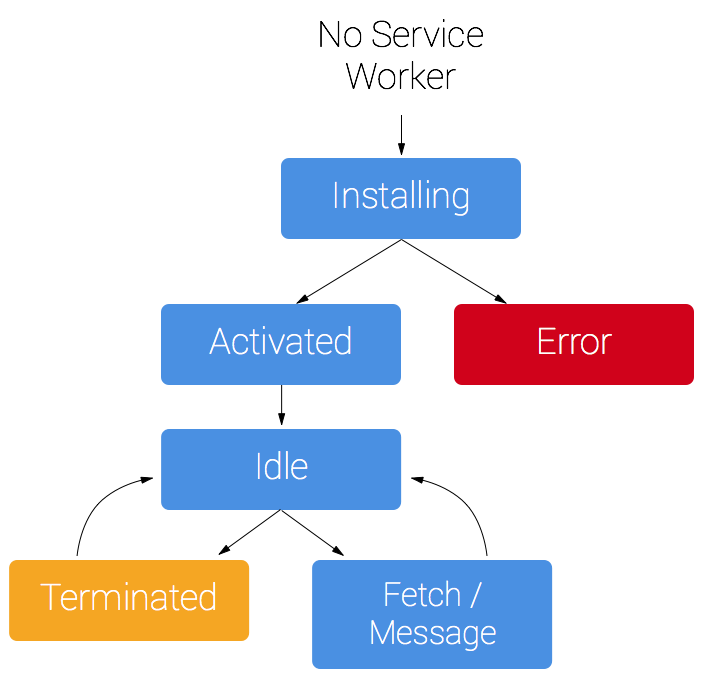
More reading on the lifeCycle (opens new window)
# Dev Tools for Service Workers
In Chrome, we can use the Application tab in the Dev Tools to find everything we need to work with Service Workers. Service Worker Registration, IndexedDB, localStorage, Cookies, Caches, Manifest,
and Background Services are all found in this tab.
If you select the Service Workers item on the left side of the Application tab, then you can control the behaviour of the current Service Worker for the current origin. The tab will display the
current status of any Service Workers that have been installed for the origin. It will show you the active Service Worker plus all the installed ones. You can skipWaiting on the installed
ones to have them replace the active one on the next refresh.
There are three checkboxes at the top of the tab:
- Offline
- Update on Reload
- Bypass for Network
The Offline checkbox has the same effect as the Throttling dropdown menu on the Network tab. It lets you ask the browser to pretend to be offline (no internet connection).
The Update on Reload checkbox will tell the browser to refresh the install of the Service Worker every time you refresh the web page. This can be useful if you are making frequent changes to the Service Worker.
The Bypass for Network checkbox is to tell the Service Worker to skip handling any fetch requests from the webpage and let them all go directly to the Server and back to the web page.
The other important feature on this tab is the link on the top-right which lets you unregister and remove a Service Worker from an origin.
Service Workers try to remain installed and control any pages for the same domain. This means that if you are doing development work over 127.0.0.1:5500 from VSCode for different sites, you might
get unexpected results if an old Service Worker is still install and registered for that domain, when you test your new site.
Another dev tool resource that you can use (in Chrome) with Service workers is the url chrome://serviceworker-internals which will list ALL the currently installed Service Workers in your browser and let you manage them.
Here is a playlist about Chrome Dev tools (opens new window) which includes many tools that are useful for Service Workers and Progressive Web Apps.
The videos in the playlist are:
- Getting Started with Chrome Dev Tools
- Testing Mobile and Responsive Designs
- Chrome Dev Tools Debugging CSS
- Chrome Dev Tools Network Traffic
- Chrome Dev Tools Console Super-Powers
- Chrome Dev Tools Source Panel and Breakpoints
- Chrome Dev Tools Data and File Storage
# Service Worker Playlist
Here is a whole playlist tutorial on how to build and use Service Workers.
Service Worker Playlist (opens new window)
The videos in the playlist are:
- Registration, Life-Cycle, Events, and Dev Tools
- The Cache API
- waitUntil, skipWaiting, claim
- How to integrate Caches
- The Storage API
- Controlling Fetch Calls
- When Fetch Goes Wrong
- Messaging Between Tabs and Service Workers
- Integrating a Database
- Building a Custom Response Object
- File Handling for Web Apps
- Clients API and Window Messaging
# ToDo This Week
To Do this week
- read all the content for modules 3.1 and 3.2
- read all the content for Hybrid web component creation
- review Hybrid Web Component exercise 2
- complete the Cache API exercise